
- The 25-character key we sent you
- Your PC connected to the internet
Part 1: Check your Windows edition (before you buy or activate)
- 1
On your keyboard, press Windows + R. A small Run box opens. Type
winverand click OK.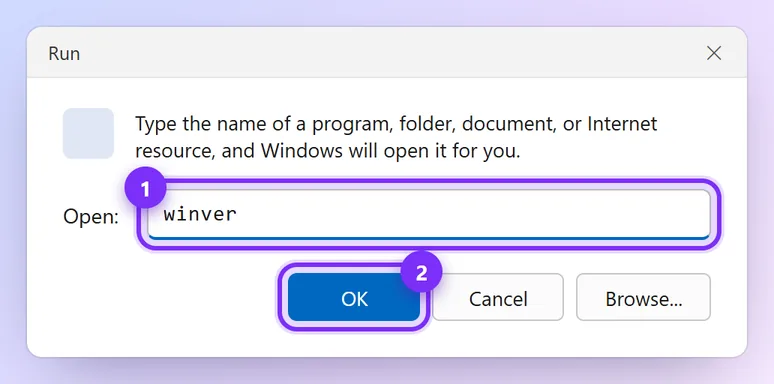
Illustration · numbers show what to click, in order · tap to enlarge - 2
A box shows your Windows version. Read the line that says Windows 11 Pro, Windows 11 Home (or 10). A Pro key works on Pro, and also upgrades Home to Pro.
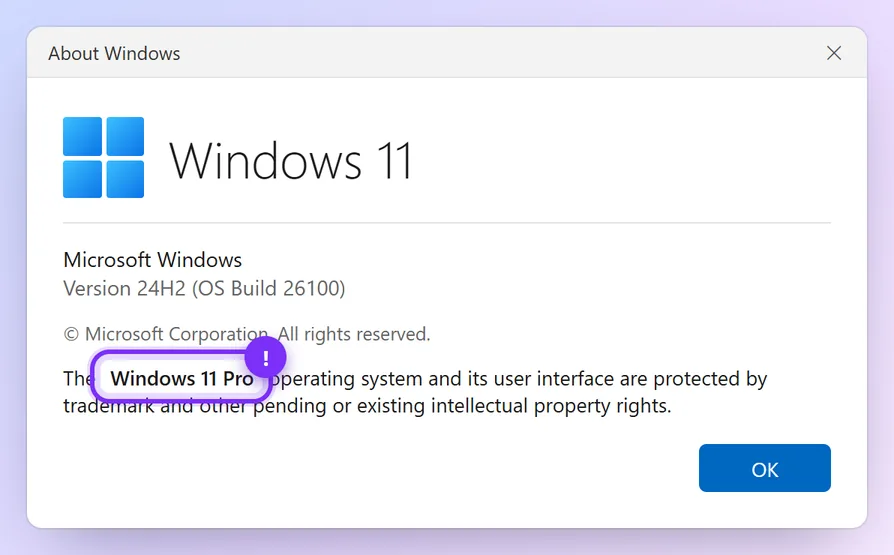
Illustration · numbers show what to click, in order · tap to enlarge
Part 2: Enter your key
- 3
Open Settings (press Windows + I). Click System, then scroll down and click Activation.
Windows 10: Settings → Update & Security → Activation.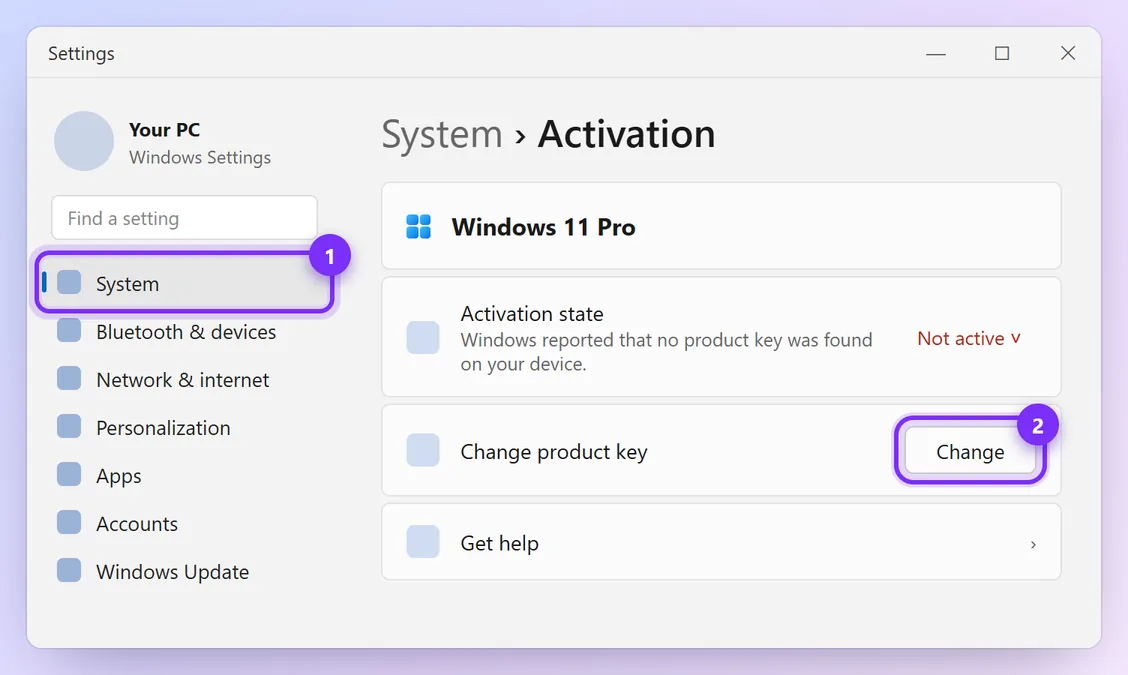
Illustration · numbers show what to click, in order · tap to enlarge - 4
Next to Change product key, click Change.
- 5
Type the 25-character key we sent you (no need to type the dashes) and click Next, then Activate.
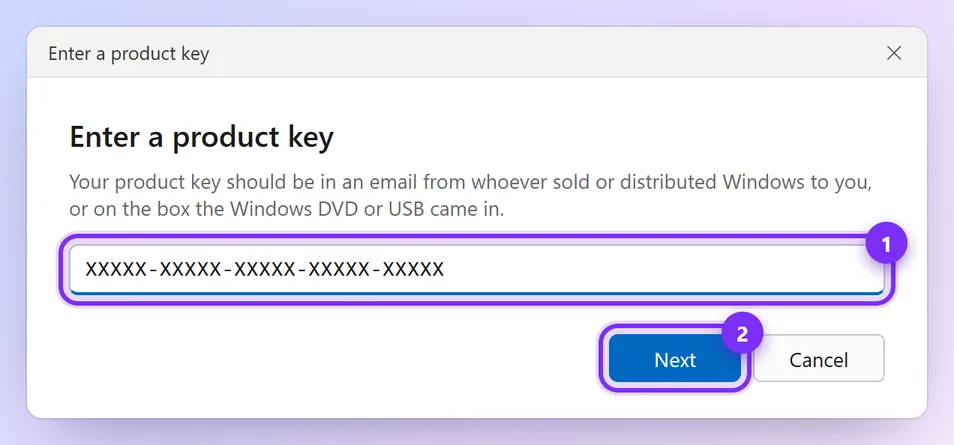
Illustration · numbers show what to click, in order · tap to enlarge
Wait about a minute. The Activation page now says Active (Windows 11) or Windows is activated (Windows 10).
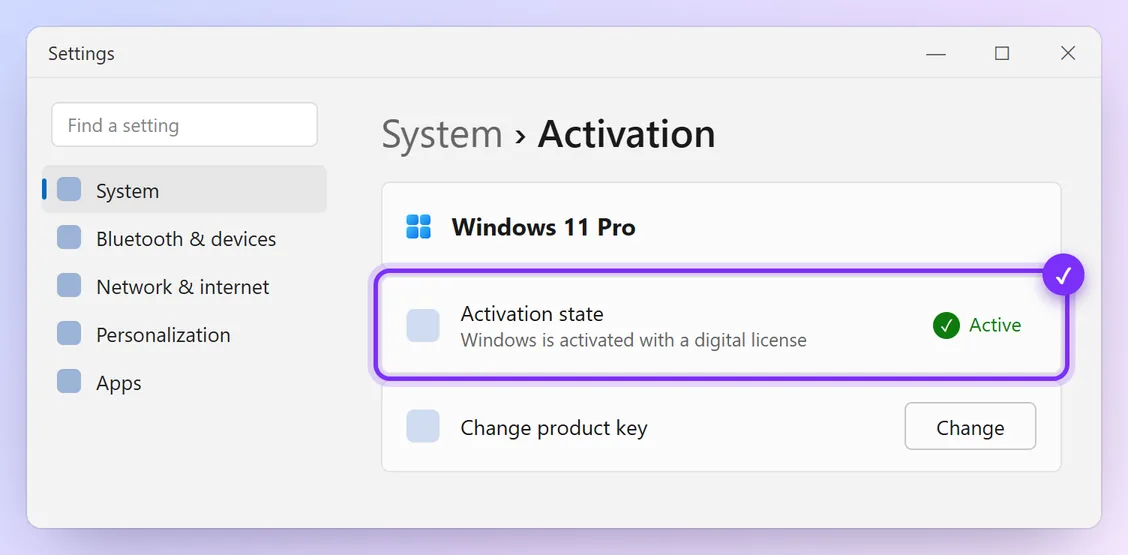
Optional: check your licence type
- 1
Press Windows + R, type
slmgr /dliand click OK. A box shows RETAIL channel and Licensed.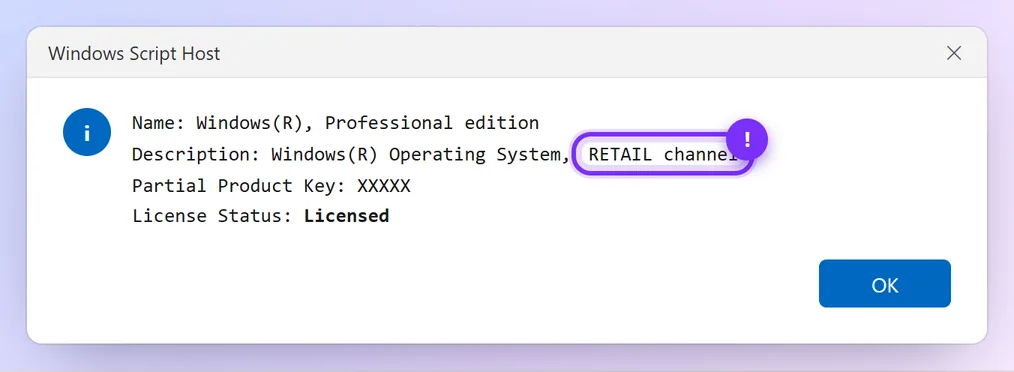
Illustration · numbers show what to click, in order · tap to enlarge
Problems and quick fixes
- “This product key didn't work”
- Check the edition with winver. Make sure you typed the key correctly and the PC is online, then try again. Still stuck? Send us a screenshot.
- It says “Windows Home”, but I bought Pro
- That's fine. Entering the Pro key upgrades Home to Pro. The PC restarts once and your files stay.
- Installing Windows from scratch
- Download Windows from our Downloads page (official Microsoft links). During setup, enter the key or choose “I don't have a product key” and activate afterwards with the steps above.
Official help: Activate Windows (Microsoft) · Find your Windows edition (Microsoft)