
- The key and official installer link we sent you
- WhatsApp open, to send us a screenshot
- Any older Office removed from the PC
These keys activate by phone activation. You don't need to call anyone: you send us one screenshot on WhatsApp and we reply with a code. We do it with you.
Part 1: Install Office
- 1
Remove any other Office first, including a pre-installed Microsoft 365 trial: Settings → Apps → Installed apps → find Office → Uninstall.
- 2
Install Office from the official link we sent you with your key, then restart your PC.
Part 2: Enter your key
- 3
Open Word. Click File (top left), then Account. Click Change Product Key.
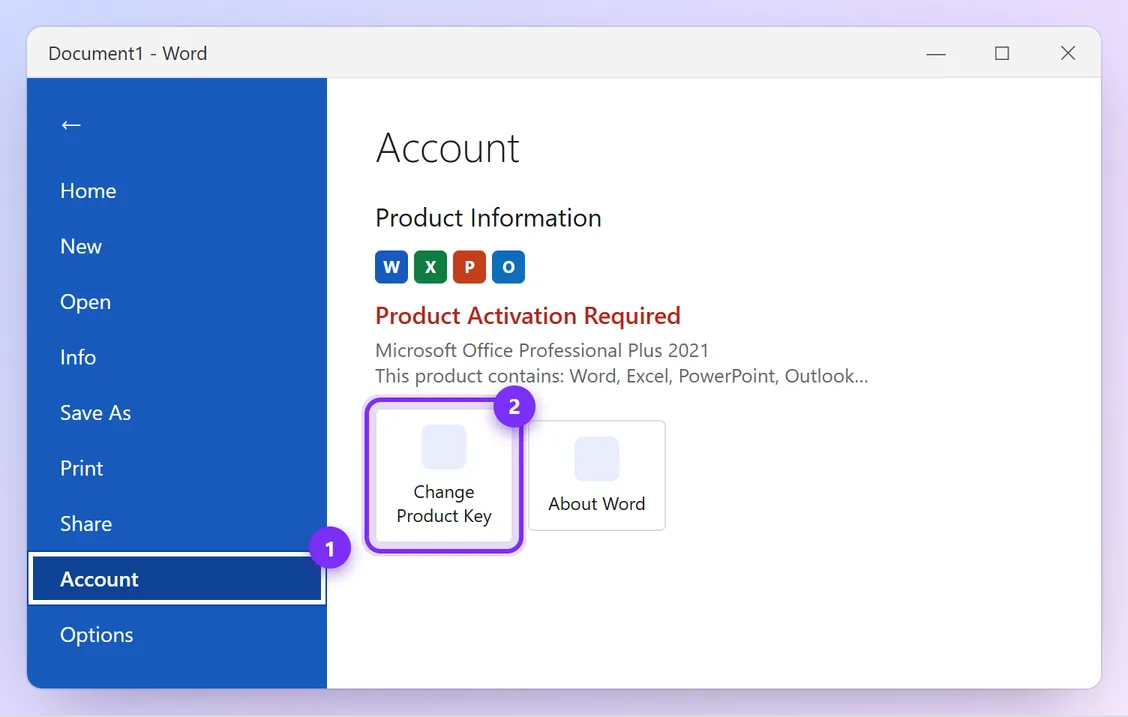
Illustration · numbers show what to click, in order · tap to enlarge - 4
Type the 25-character key we sent you and click Activate Office. If it says Office isn't activated yet, that's normal: carry on.
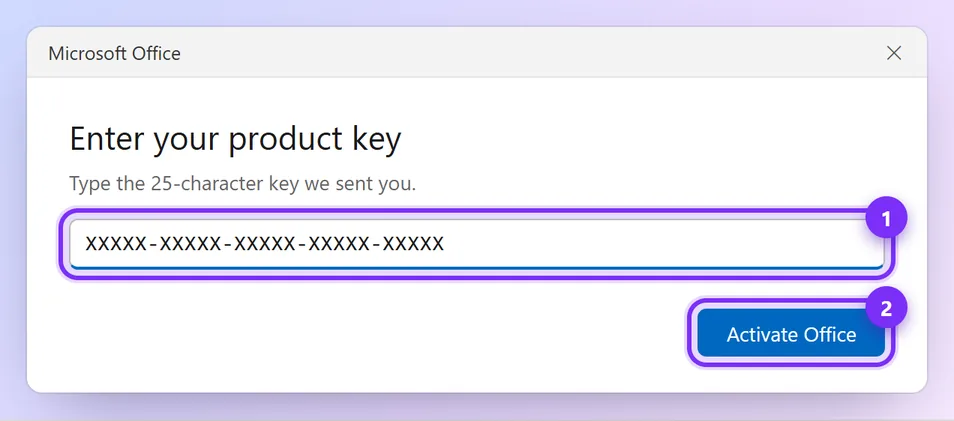
Illustration · numbers show what to click, in order · tap to enlarge
Part 3: Phone activation (with us on WhatsApp)
- 5
When asked how to activate, choose I want to activate the software by telephone and click Next.
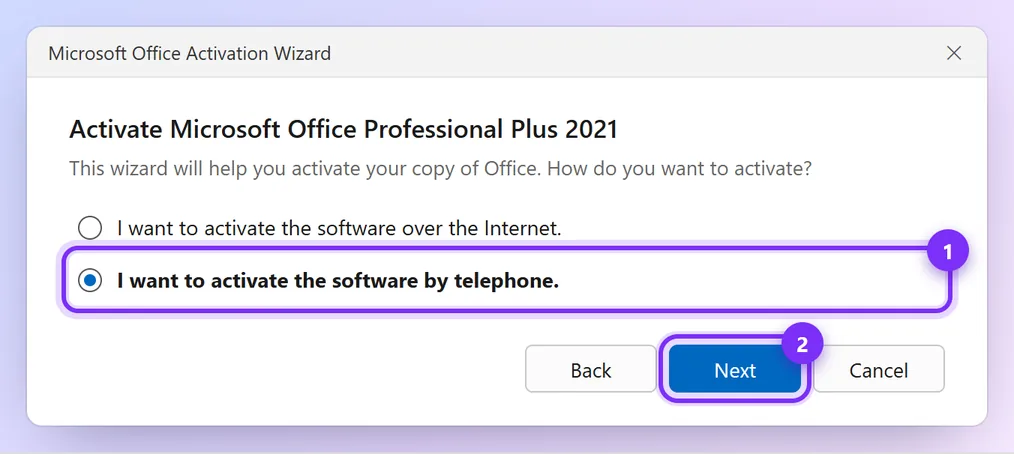
Illustration · numbers show what to click, in order · tap to enlarge - 6
Choose Pakistan as your location. Office shows an Installation ID: 9 groups of numbers. Take a clear screenshot and send it to us on WhatsApp with your order number.
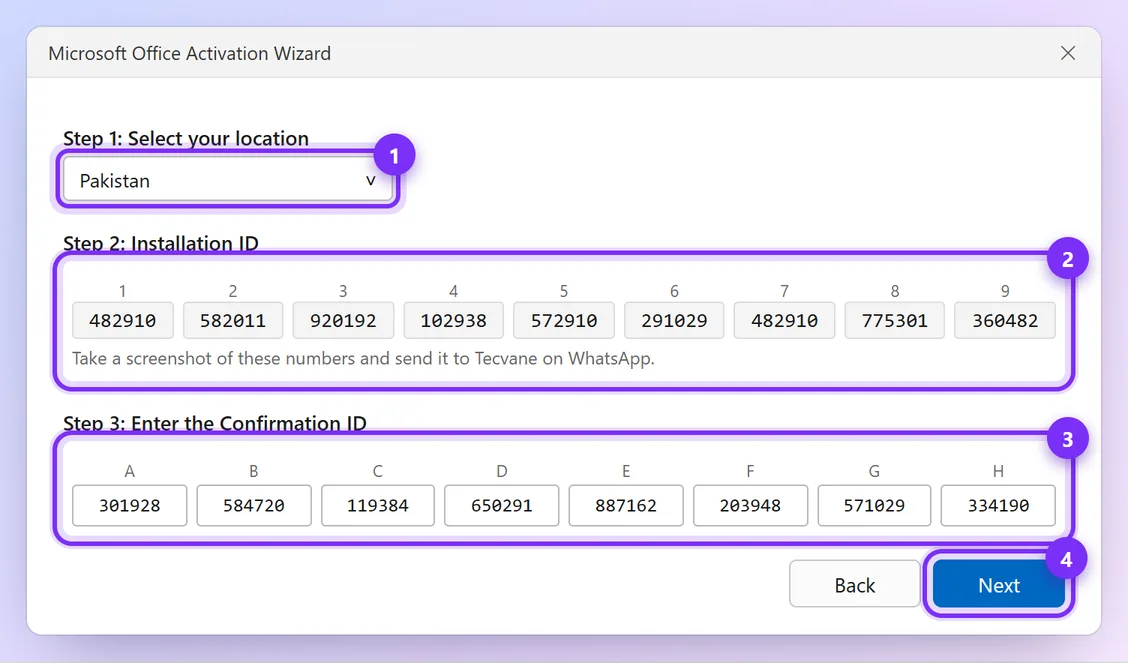
Illustration · numbers show what to click, in order · tap to enlarge - 7
We reply with a Confirmation ID, usually within minutes. Type it into boxes A to H and click Next.
Don't restart, update or reinstall Windows between sending us the Installation ID and typing the Confirmation ID, or the numbers won't match.
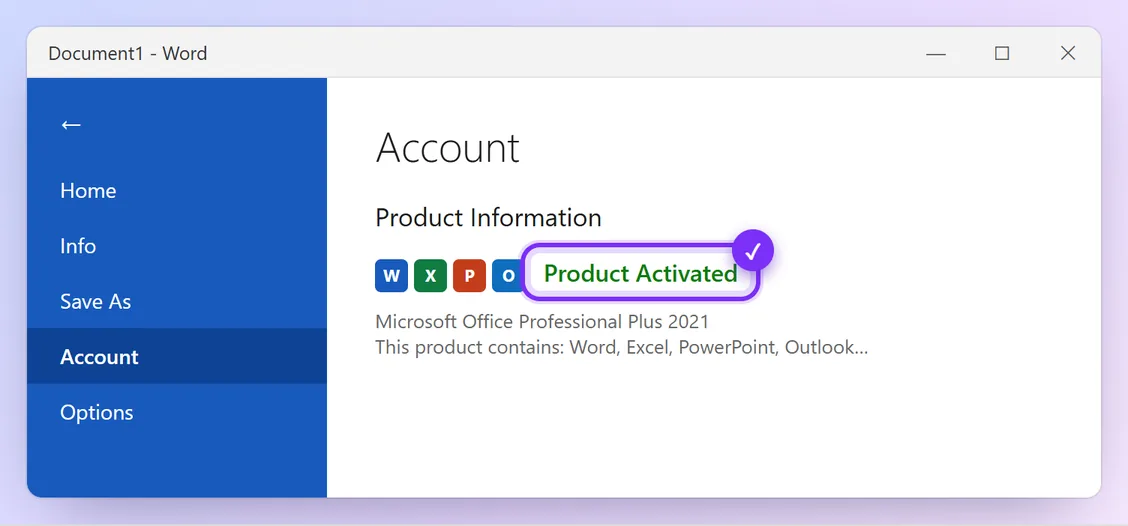
Go to File → Account. It now says Product Activated. Office is activated for life on this PC.
Problems and quick fixes
- The Installation ID doesn't show
- Make sure you chose the telephone option and selected a country. Close Word, open it again, and repeat Part 3. Still nothing? Send us a screenshot of what you see.
- “Telephone activation is no longer supported for your product”
- Don't worry. Send us a screenshot on WhatsApp and we'll activate it another way or replace the key. It's covered by your warranty.
- Office says “Unlicensed Product”
- Another Office version is probably still installed. Uninstall it, restart, and enter your key again.
Official help: Activate Office (Microsoft)